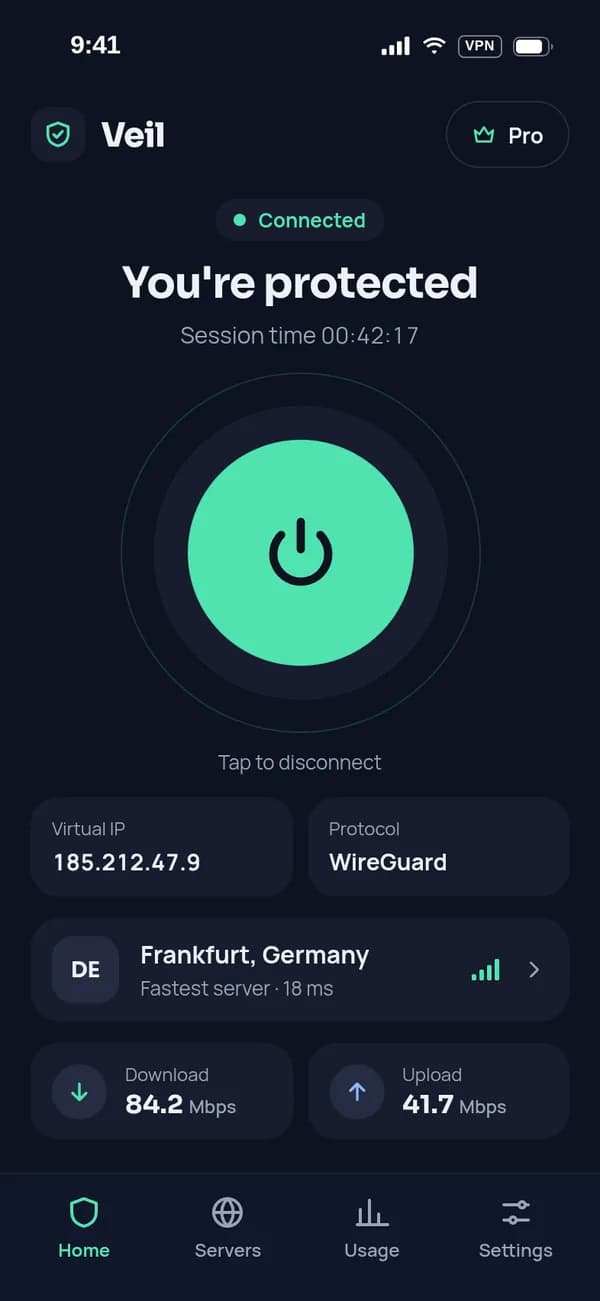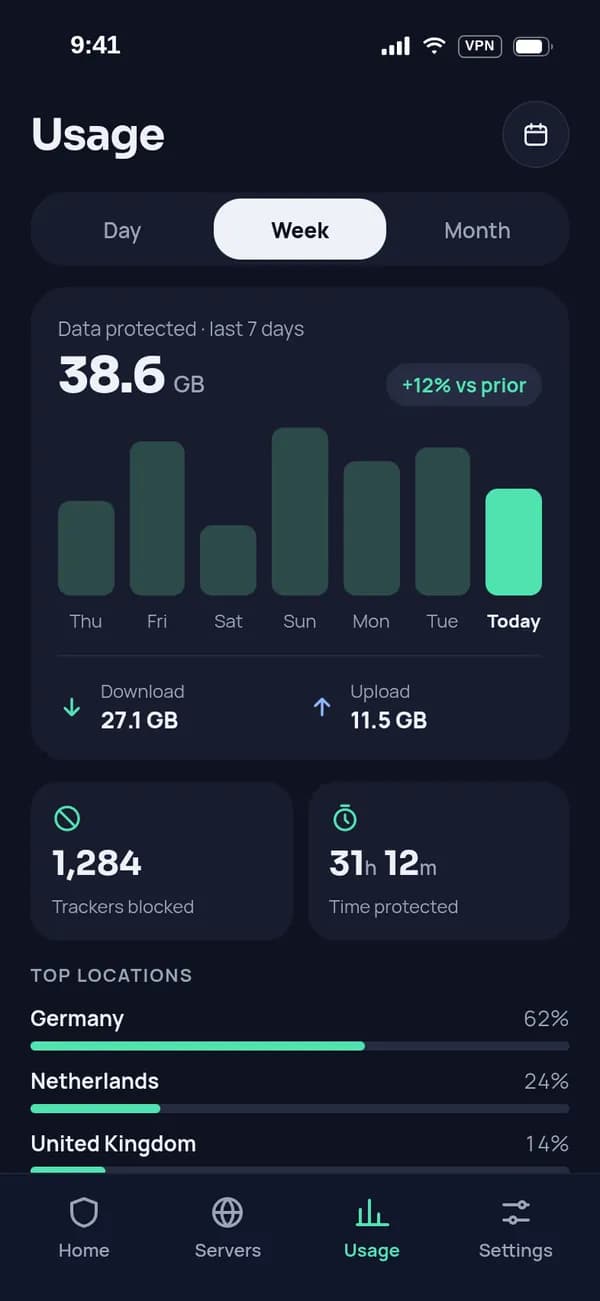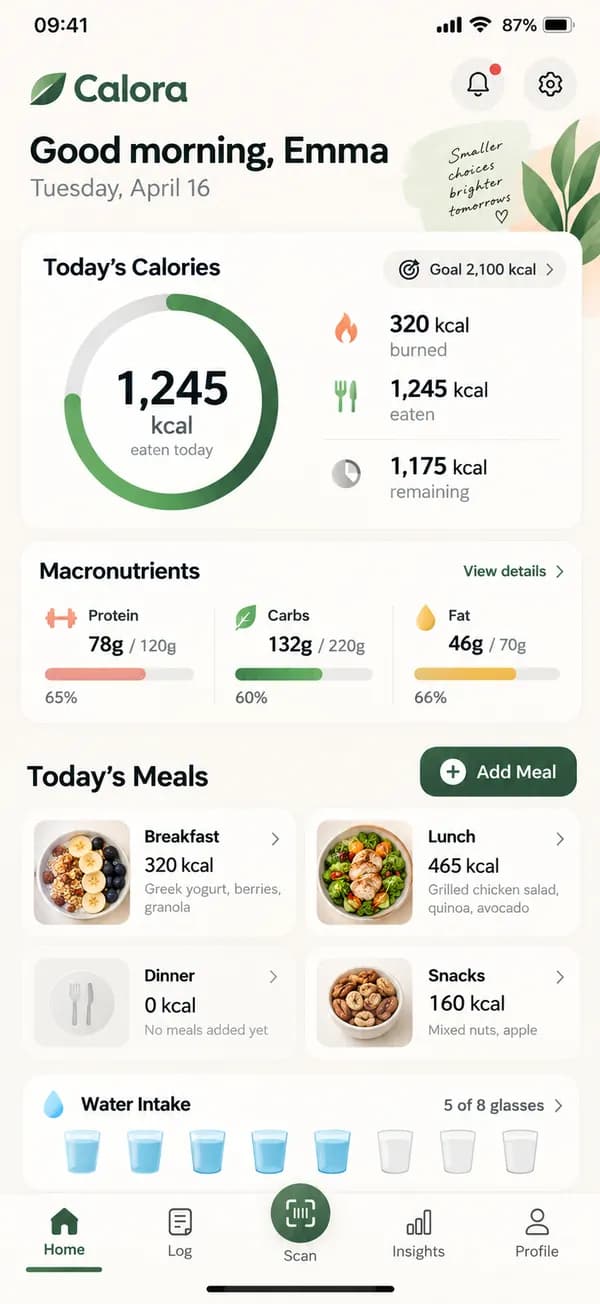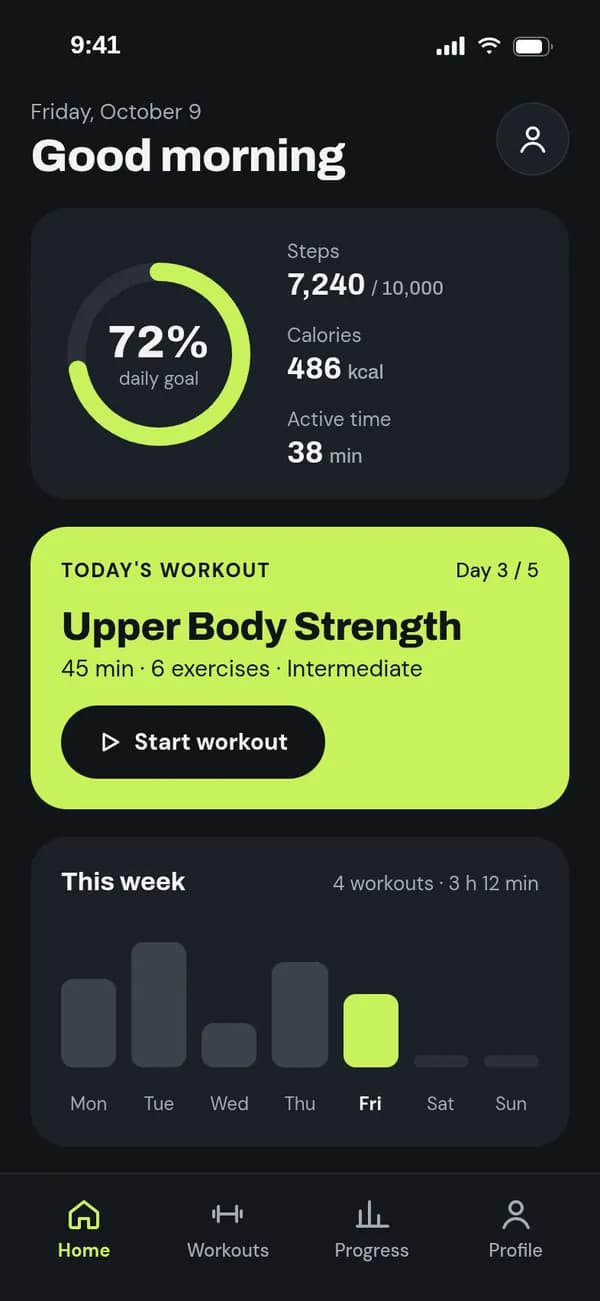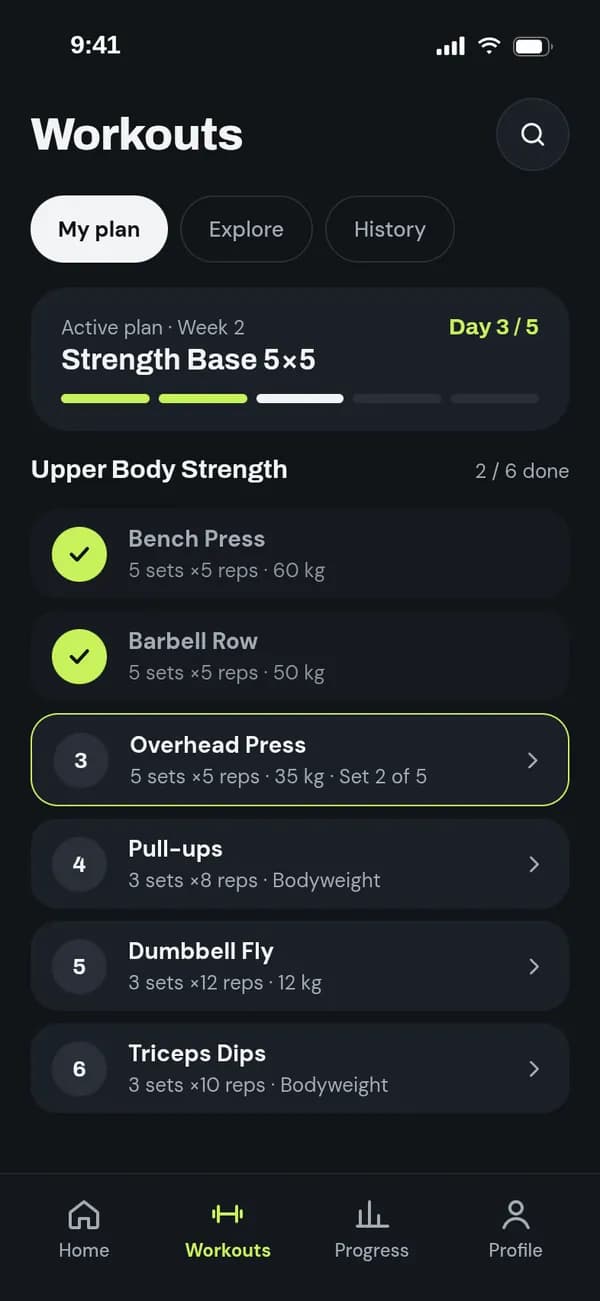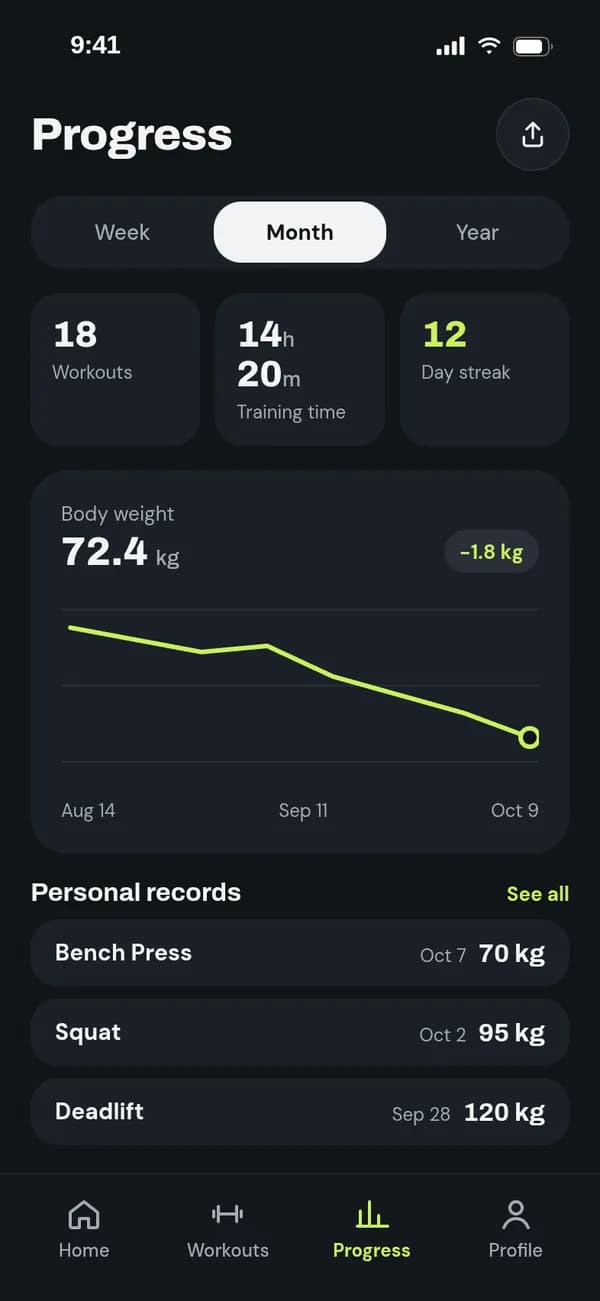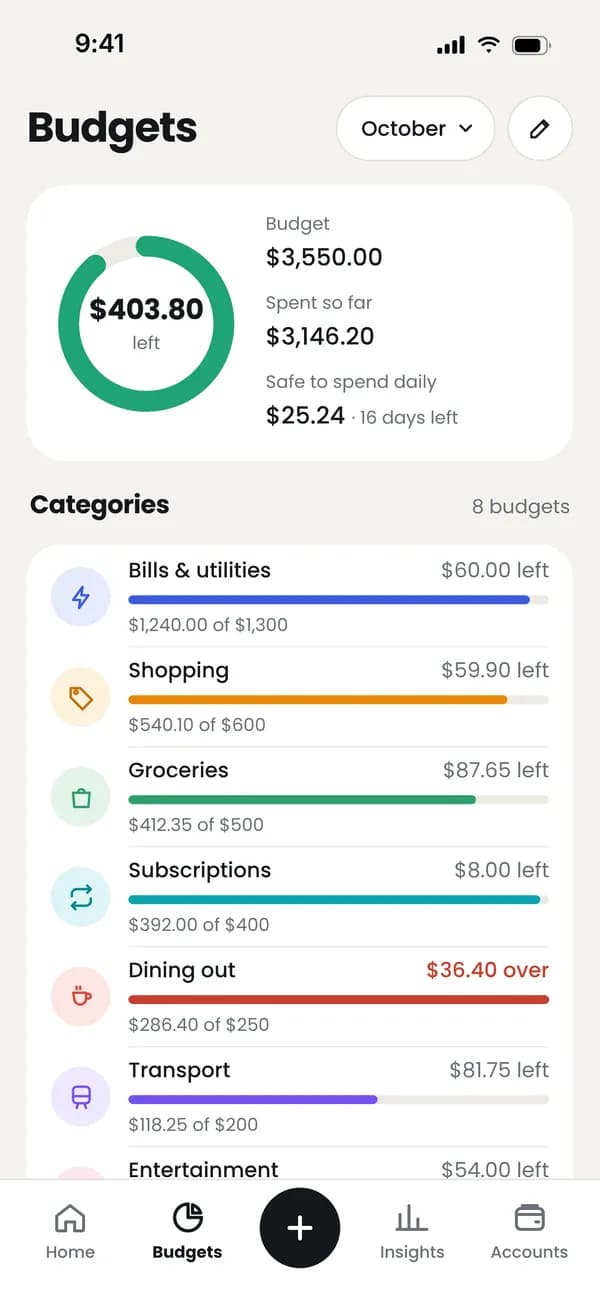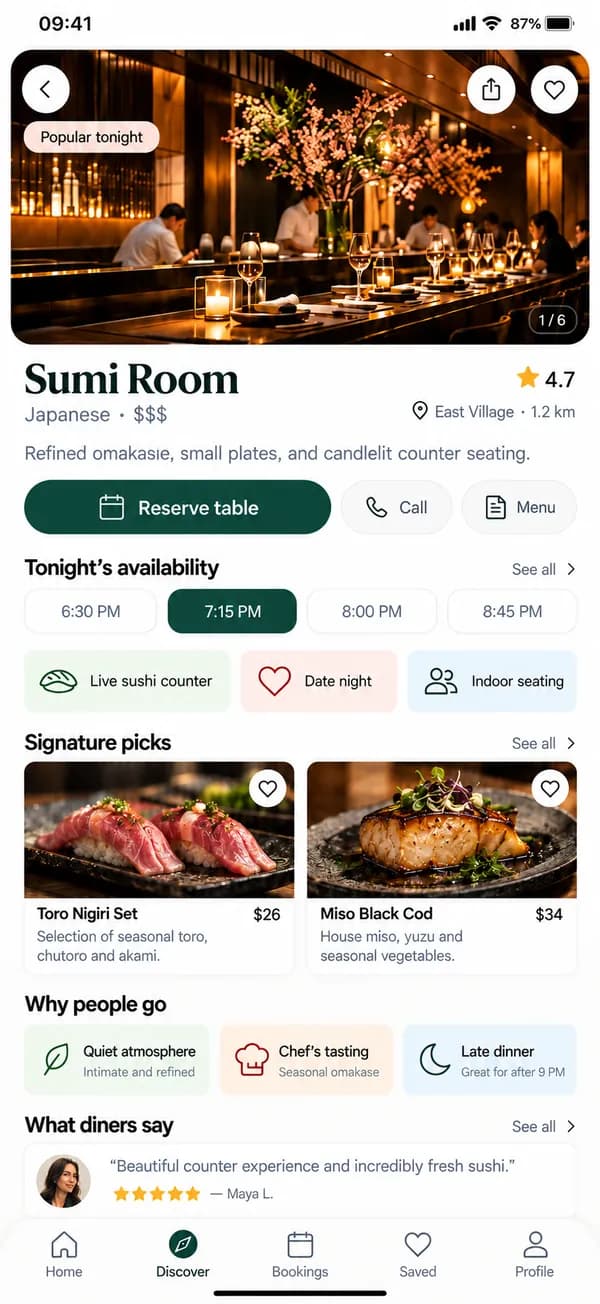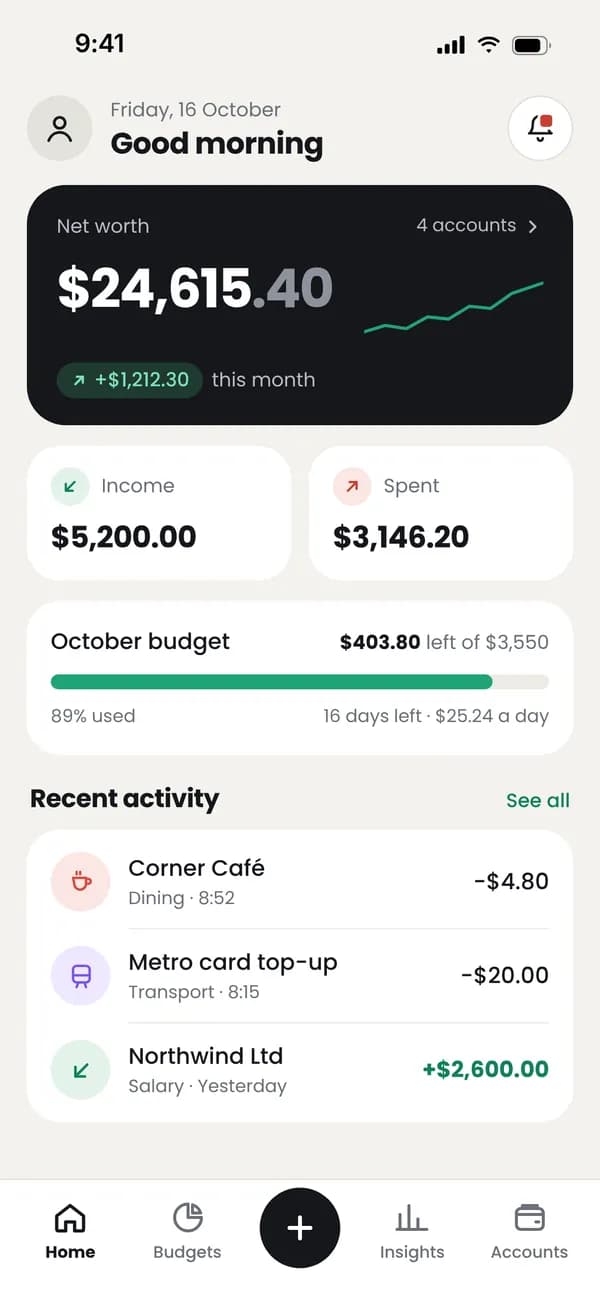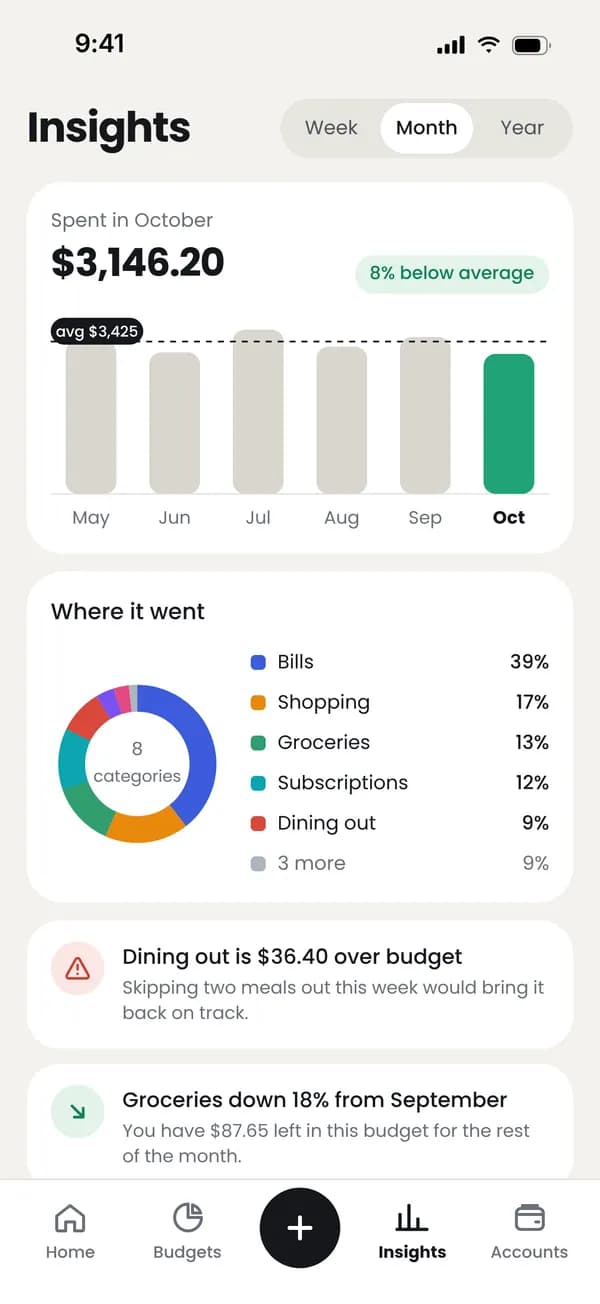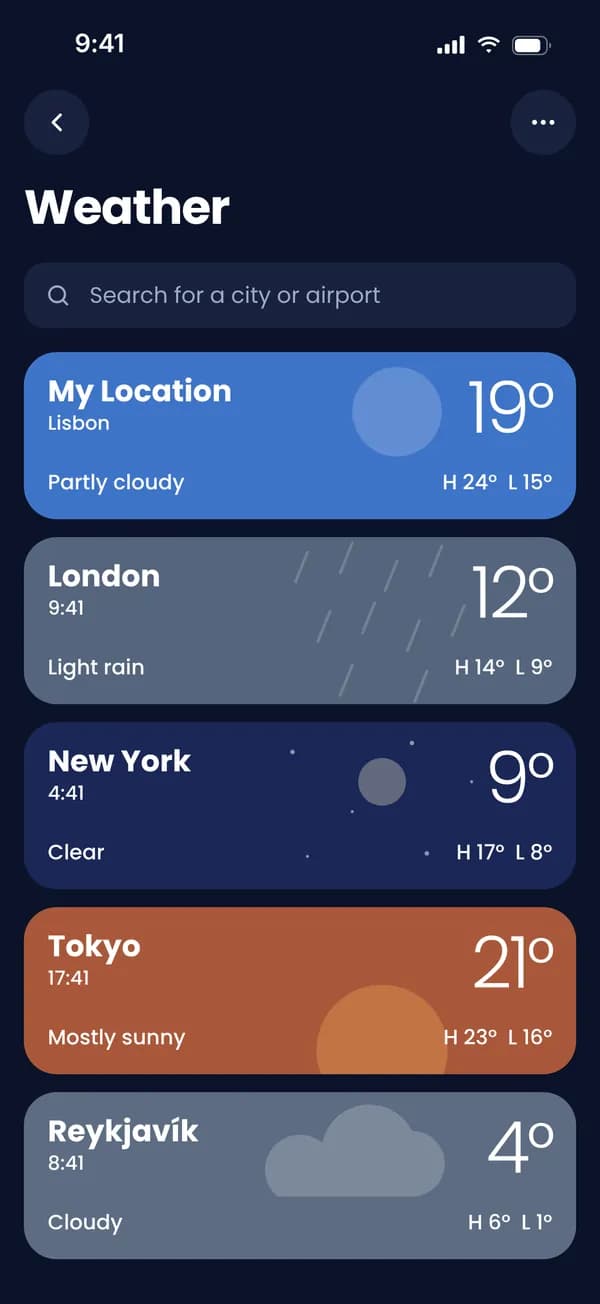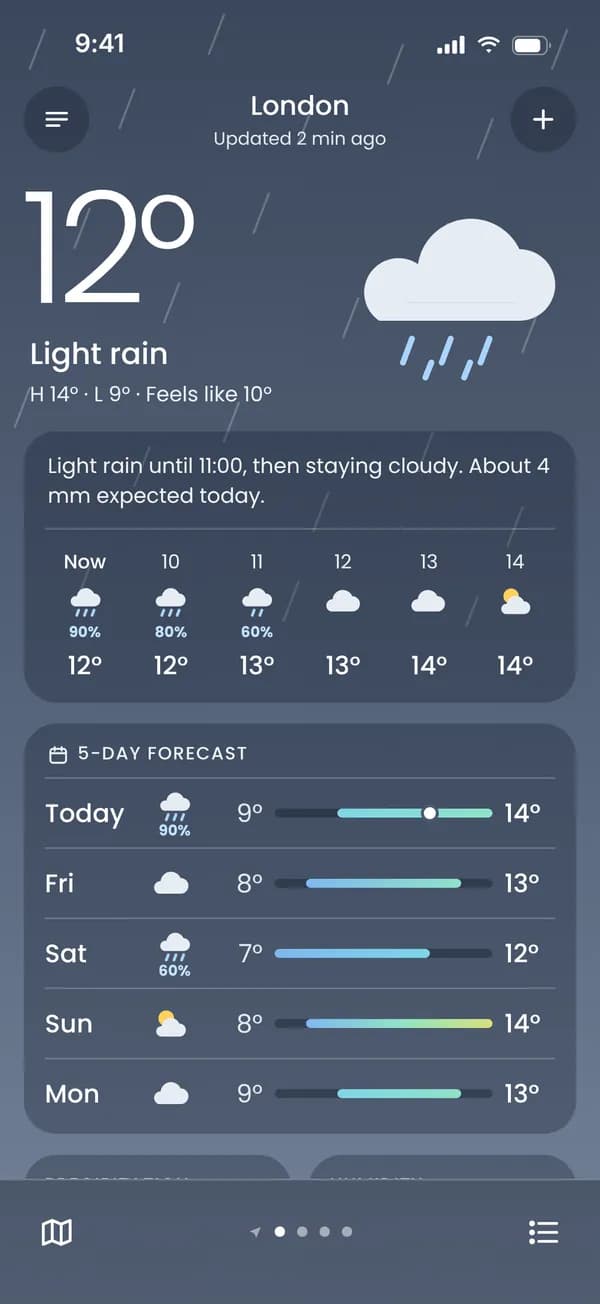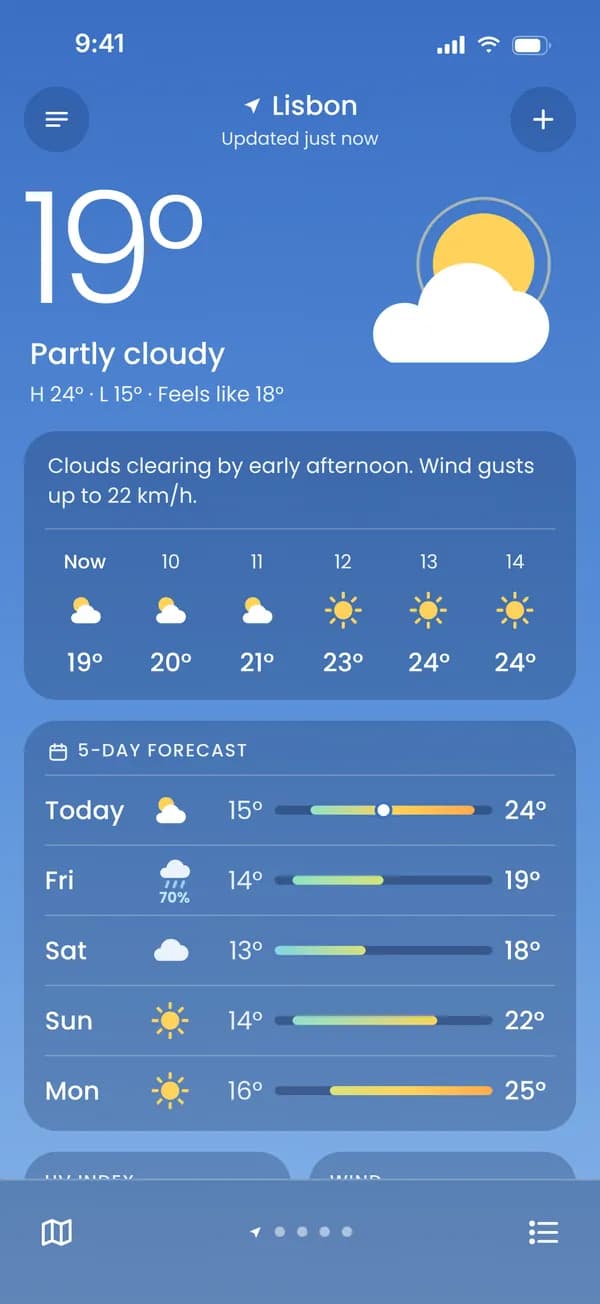
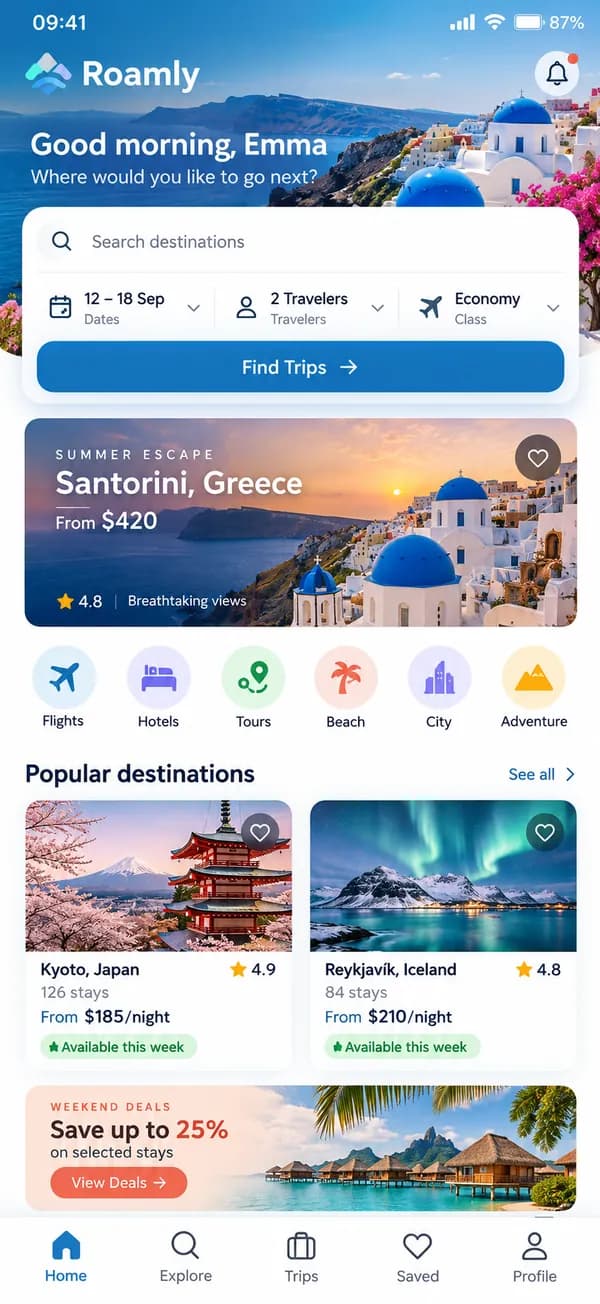
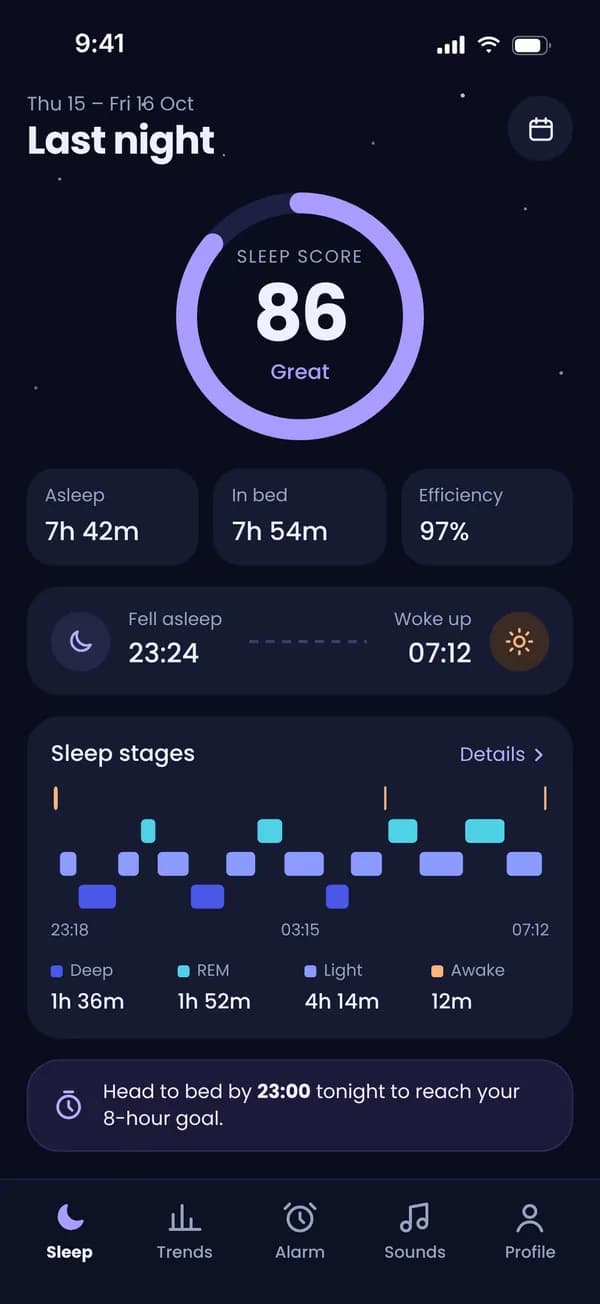
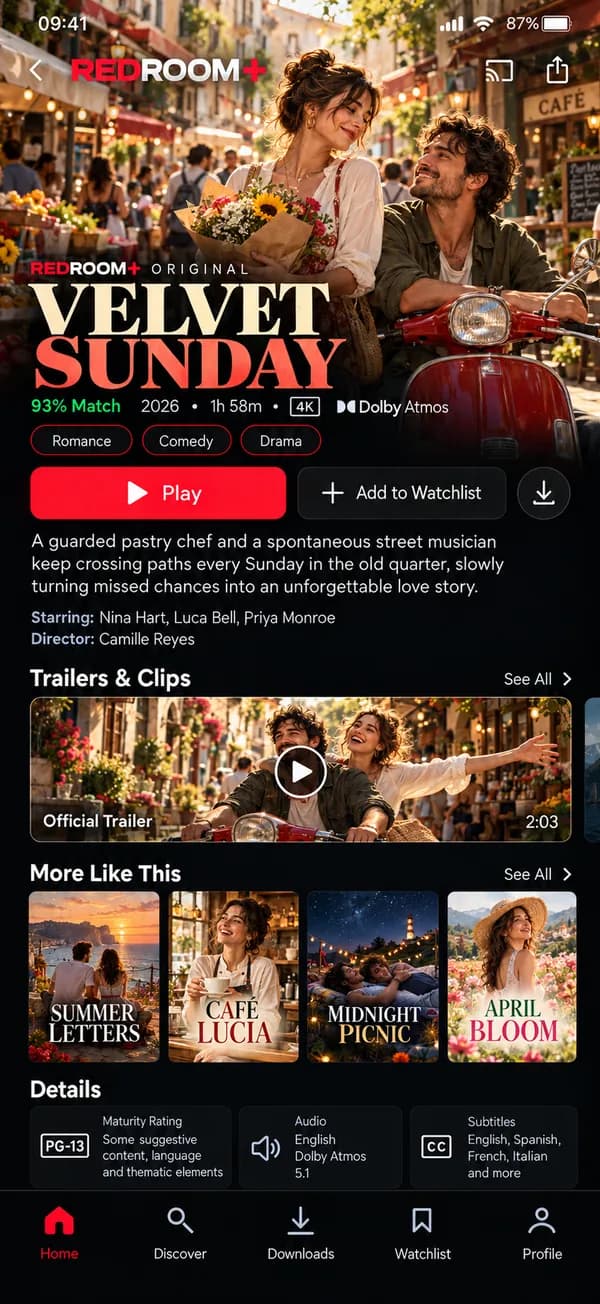
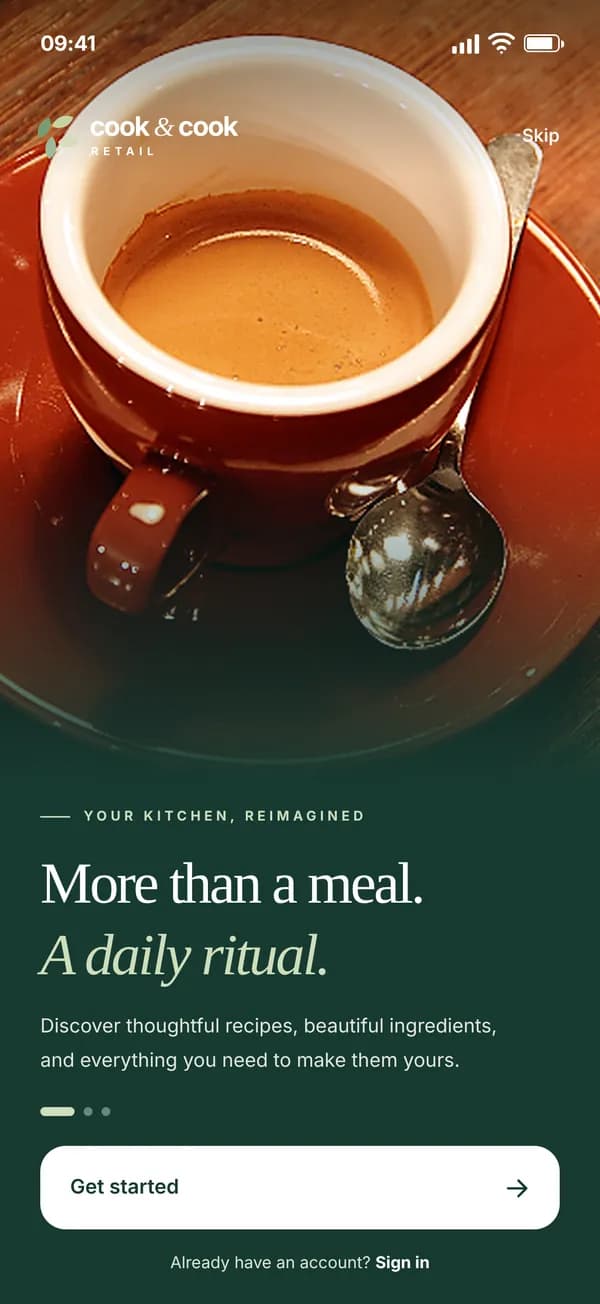
Pick a design
Choose a ready-made design, or answer a few questions and let it build itself around your own screenshot.
Stop burning hours in Figma or Photoshop. ScreenJets is a browser-based App Store and Google Play screenshot maker: ready-made templates, device frames, an icon and emoji library and store copy in 80+ languages. iPhone, iPad and Android sizes from one project, in one ZIP.
Choose a ready-made design, or answer a few questions and let it build itself around your own screenshot.
Double-click a heading on the canvas and type in the rich-text editor; it shows up on the canvas instantly. Make a single word bold, italic or coloured.
Write your headline for each language — add up to 10 of 80+ languages per project.
Download a single ZIP sized for the App Store and Google Play.
Store decisions happen in seconds. Make sure your screenshots win them.
One design. Every device.
Design once, and every iPhone, iPad and Android size comes out of the same project.
iPhone 6.9″1320 × 2868 px
One project · 8 store sizes · one ZIP
From design to translation, the asset library to export — the whole store screenshot workflow, right in your browser.
Merge 2 to 4 screens into one panoramic screenshot design. Backgrounds, devices and shapes flow across the seams, telling one story as users swipe through your listing.
Every App Store and Google Play screenshot size in one project: iPhone, iPad, Android phones and tablets. Output is alpha-free sRGB PNG, and you're warned before export if a store's screenshot limit is exceeded.
Localize your screenshots into up to 10 of the 80+ languages the App Store and Google Play support. Write each headline yourself or, for supported languages, fill the gaps with one-click machine translation and polish them in the translation table. Arabic and Hebrew run right to left; Japanese, Hindi and Thai are drawn in their own scripts.
Solid colour, four kinds of gradient or your own image, plus 170+ ready-made gradients and palettes. Spread one image across screens, add film grain, and build depth with decorative shapes.
Pull your app's dominant colours from a screenshot and set them as background, text and accent. Browse ready-made designs already recoloured in your palette: the structure stays, the text stays readable.
Screenshot shows 20% battery and 14:23? One switch draws 9:41 with full signal and battery — the familiar look of a polished store listing. Pick a light or dark bar to suit your screen.
Saves are kept as versions (the latest 50 per project). Preview an older state and roll back in one click; the state before a template or an export is saved separately.
5,000+ icons, 1,500+ emoji in flat or 3D, and 230+ illustrations, one click away on the canvas. Write rating, award and stat badges separately for each language; call out any detail of your screen with arrows and a magnifier.
Answer a few questions — layout, colour mood, typeface — and the design builds itself around your own screenshot. Pick a ready-made design and your text and images stay; only the look changes. Save a design you like and reuse it in other projects.
Six typefaces including Inter, Poppins and Playfair Display — or upload your own font on paid plans. Make a single word bold, italic or coloured; add shadow and outline. If a headline overflows, the size steps down on its own; match size and weight across every screen in one click.
Double-click text and type in the rich-text editor; line it up with snapping guides. Lock or hide layers; select several objects to align or distribute them evenly. Every change saves automatically — and if a save can't reach the server, your work is kept in your browser.
Drag and drop every screenshot at once; they're sorted by file name and placed screen by screen. Use separate images for iPhone, iPad and Android, and zoom and crop each one inside its device frame.
The editor and the server share the same rendering engine. Every language in your project and the sizes you pick arrive in one ZIP, with folders named by each store's own language code; check them on a mock store page before you upload.
The canvas is fully open. No subscription required — there's a one-time pass for a single app too.
Missing translations, empty headlines, devices with no screenshot, headlines nobody can read in search… The editor checks every target, every language and every screen in one window, so Export holds no surprises.
If a headline doesn't read against its background, the editor tells you, with the contrast ratio. Weak and unreadable are separate levels; it warns, and the design call stays yours.
A headline that looks elegant on the canvas shrinks to thumbnail size in search results. The editor measures the size actually drawn and, if it won't read, tells you the minimum size you need.
A small screenshot scaled up to a big device turns blurry. The editor tells you before you export, with the pixel size you need — and when the aspect ratio differs, how much gets cropped off the edges.
Your set is what people see in search results. Switch the store and language to see how the same project holds up in every listing.
Illustrative preview · sample app
Designing is always free. Grab a one-time pass for a single app, or go Pro if you ship regularly.
Prices exclude tax; tax for your country is added on top at checkout.
Payment is charged in USD; Turkish lira amounts are approximate, converted at today's rate.Payment is charged in USD; Euro amounts are approximate, converted at today's rate.Payment is charged in USD; British pound amounts are approximate, converted at today's rate.
Create your free account, open your first project and design with every editor feature. You only pay when you want watermark-free exports.
Short answers to what people ask most before trying ScreenJets.
ScreenJets is a browser-based App Store and Google Play screenshot maker. You design store screenshots with device frames, ready-made templates and store copy in 80+ languages, then export them at store resolution. It's built for developers who ship their own apps and for small agencies — nothing to install.
No, and you don't need Figma or Photoshop either. Pick a ready-made screenshot template or answer a few questions to start with a quick design, then upload your screenshots and write your headline. Snapping guides line objects up with the centre and safe area; every change is saved automatically and you can undo at any time.
Yes. AI design is included in the Single App Pass and Pro: describe your app and the mood, add screenshots if you like, and the AI model you pick drafts the design and the headlines. You preview it first and apply it only if you like it. Each prompt costs credits; Pro includes credits every month, the Single App Pass once per pass. The AI doesn't create images: it only arranges screenshots, template elements and text.
Designing is free: one project of up to 5 screens, with every editor feature and every template. Exports on the free plan are watermarked and low resolution (35% of the target size); watermark-free exports come with the Single App Pass or Pro. No credit card required.
5,000+ icons, 1,500+ emoji in flat or 3D, 230+ illustrations, rating, award and stat badges, arrows and a magnifier. You can add your own logo or images too. Library items are MIT and CC0 licensed, and all of them are open on the free plan.
No. A ready-made or quick design only changes the look; your text, screenshots and added elements stay. The state before applying is saved to version history, so you can go back in one click.
For the App Store: iPhone 6.9″, 6.3″, 6.5″ and 5.5″, plus iPad 13″. For Google Play: two phone aspect ratios plus 7″ and 10″ tablets. Output is alpha-free sRGB PNG.
The editor's “Am I ready?” button checks every size you picked, every language and every screen in one window: missing translations and screenshots, empty headlines, devices with no screenshot, and headlines that don't read against their background or shrink too small in search results. Items that block the export are shown separately, and clicking a row takes you to that screen. The device panel also warns you about screenshots that would come out blurry.
Yes. Add up to 10 of 80+ languages to a project and write each headline separately, with a language-specific screenshot where you need one. Arabic, Hebrew, Persian and Urdu run right to left; Japanese, Chinese, Hindi, Thai and others are drawn in their own scripts. If a translation is missing, you see which screen before you export. For supported languages, you can also fill the gaps with one-click machine translation and polish them in the translation table.
When you start an export, images are rendered on the server and you can follow the progress live. Every language in your project and the sizes you pick (up to 8) arrive in one ZIP, with folders named by each store's own language code (tr on the App Store, tr-TR on Google Play); the ZIP stays downloadable for 7 days and your past exports stay listed in your account. You can also download a single screen, or save files straight to a folder in Chrome and Edge.
No. For a single app you can buy the Single App Pass once: 30 days of watermark-free exports, and it never renews. If you ship regularly, Pro is the better deal.
Your projects aren't deleted and stay editable. Only watermark-free export switches off; when you need it again you can buy a new pass or move to Pro.
Didn't find your answer?
Write to us and we'll get back to you soon.
 TR
 EN
 DE
 JA
 AR
 ES